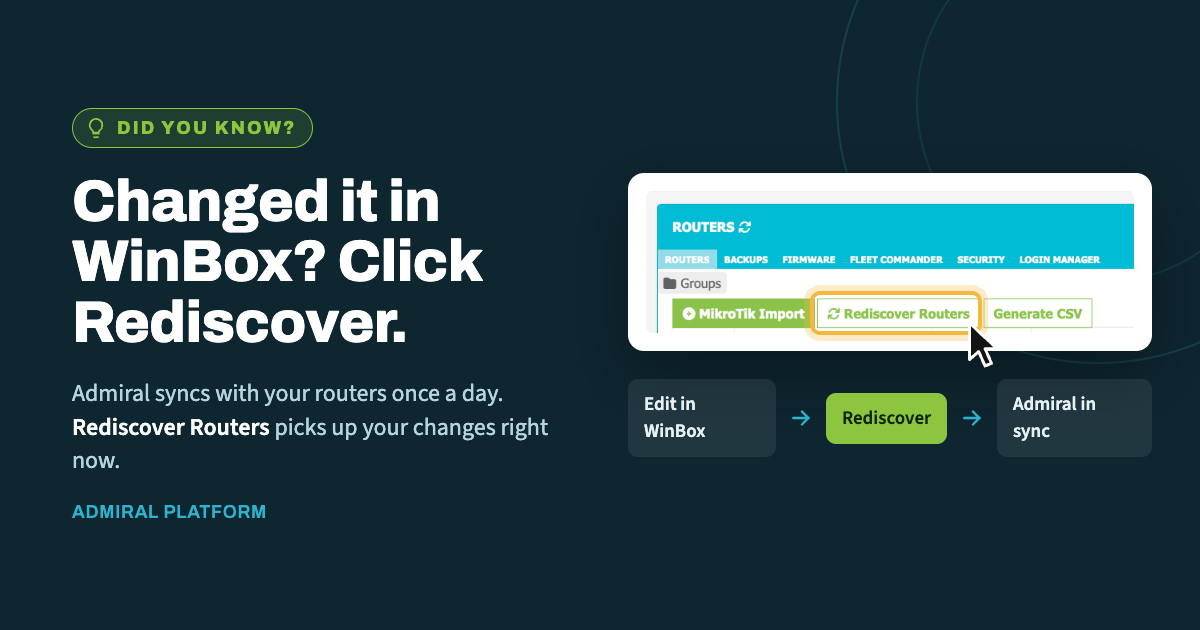
When you make a change directly on a router in WinBox, Admiral doesn't learn about…

5 Things You May Not Know About RemoteWinBox
Features you maybe haven’t noticed on the RemoteWinBox Dashboard:
1. You can view when a router was last seen online
If you roll over the “offline” symbol on the Router List page – you can view a tooltip that tells you when the router was last seen

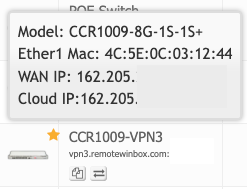
2. You can view the router model, MAC, IP from Router List Page
If you hover over the router image you can see details on the router, such as Model Number, Ether1 MAC, WAN IP, and Cloud IP.
3. Omni search
You can search by All fields on the router – such as model, mac, IP, etc
You can use the search bar to find routers by more than just their name, but also any notes, port numbers, model, identity, and firmware. This also works in our features, such as Firmware Manager, so you can easily see which routers need to be updated.
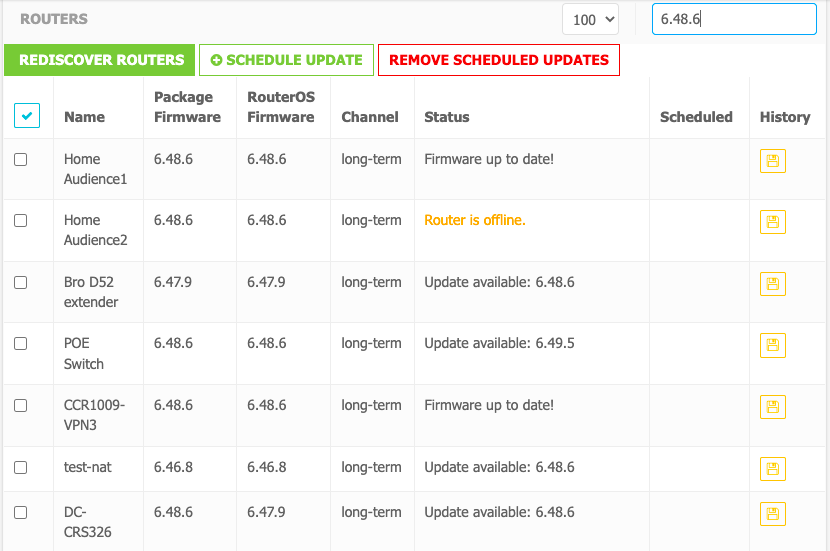
4. You can select all on pages that have pagination limits of 100
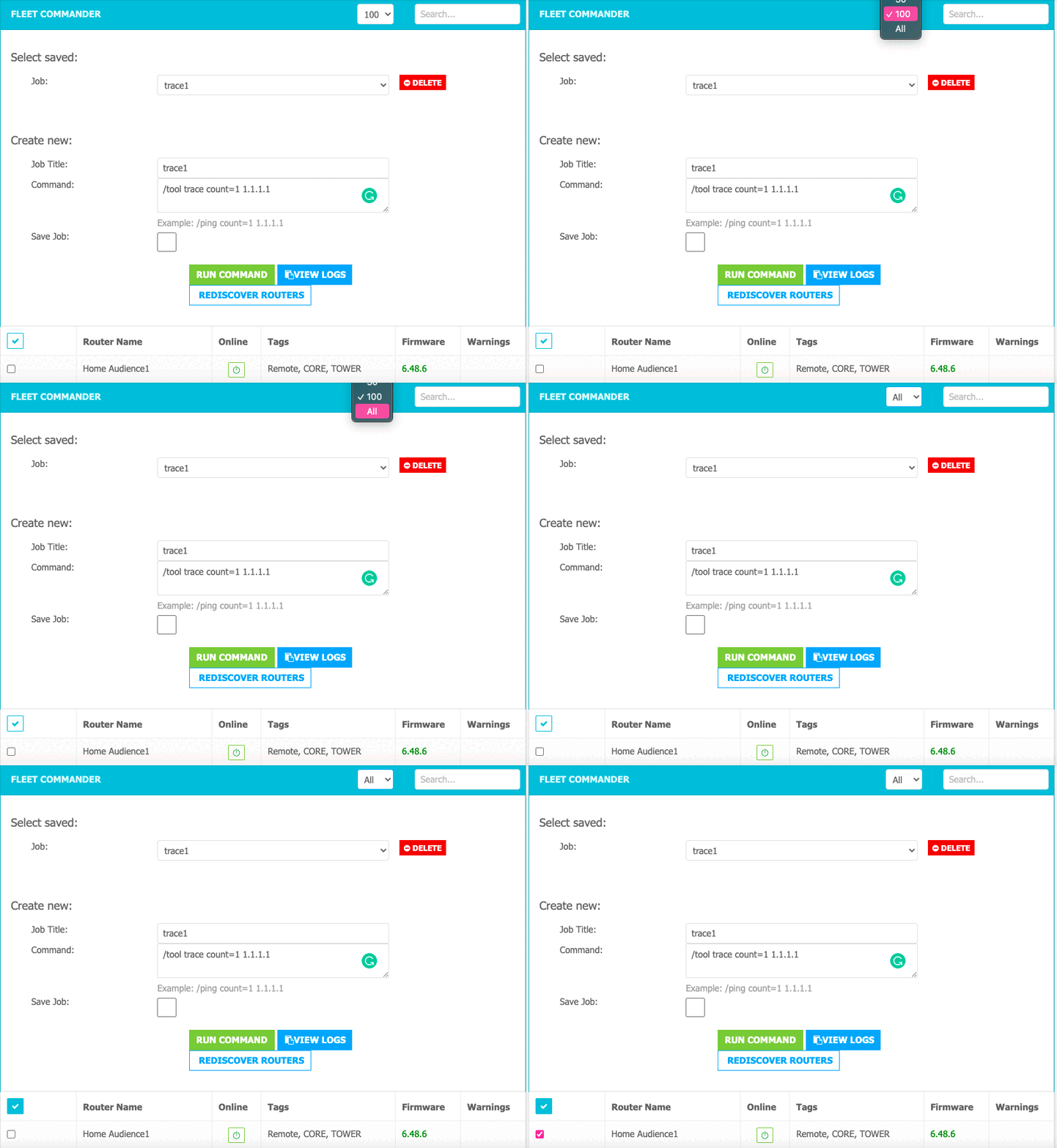
On some tool pages, such as Fleet Commander, pages only display the first 100 routers, but you can adjust to display all routers and select all to run a command
5. You can run multiple commands on Fleet Commander
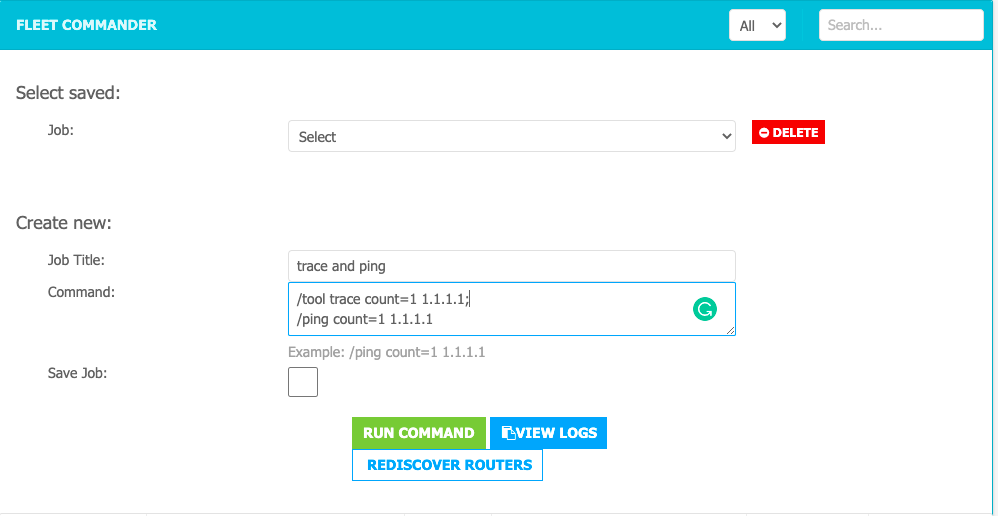
Speaking of Fleet Commander – you may not know that you can run multiple commands through the Fleet Commander to one, some, or all of your routers by separating your commands with a semi-colon.

Related Posts