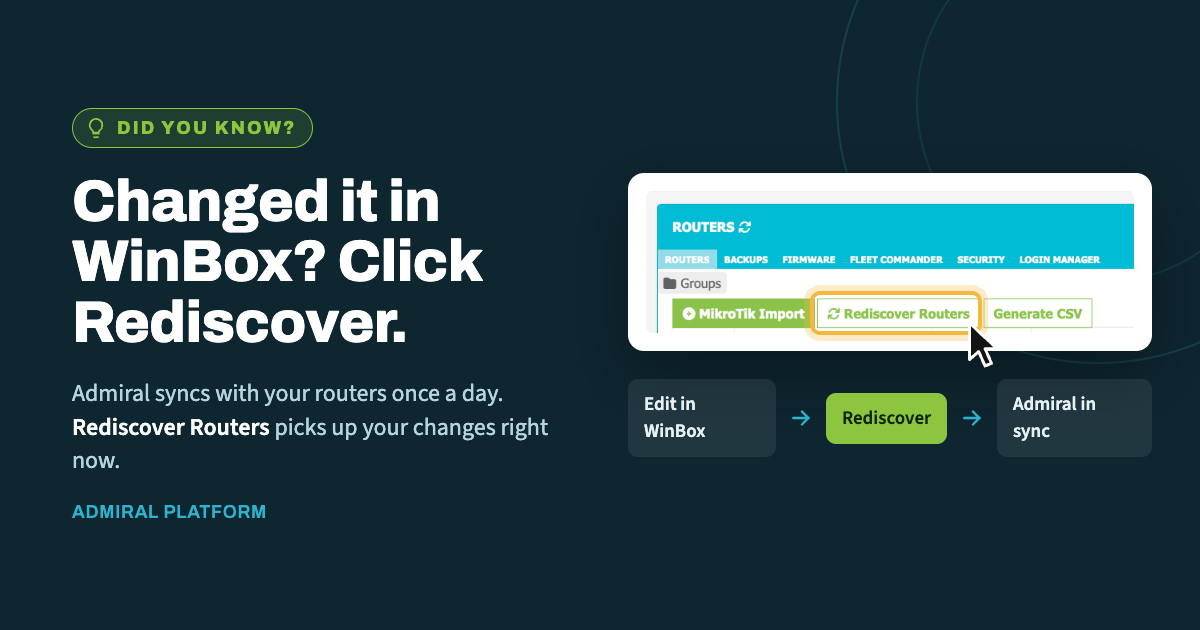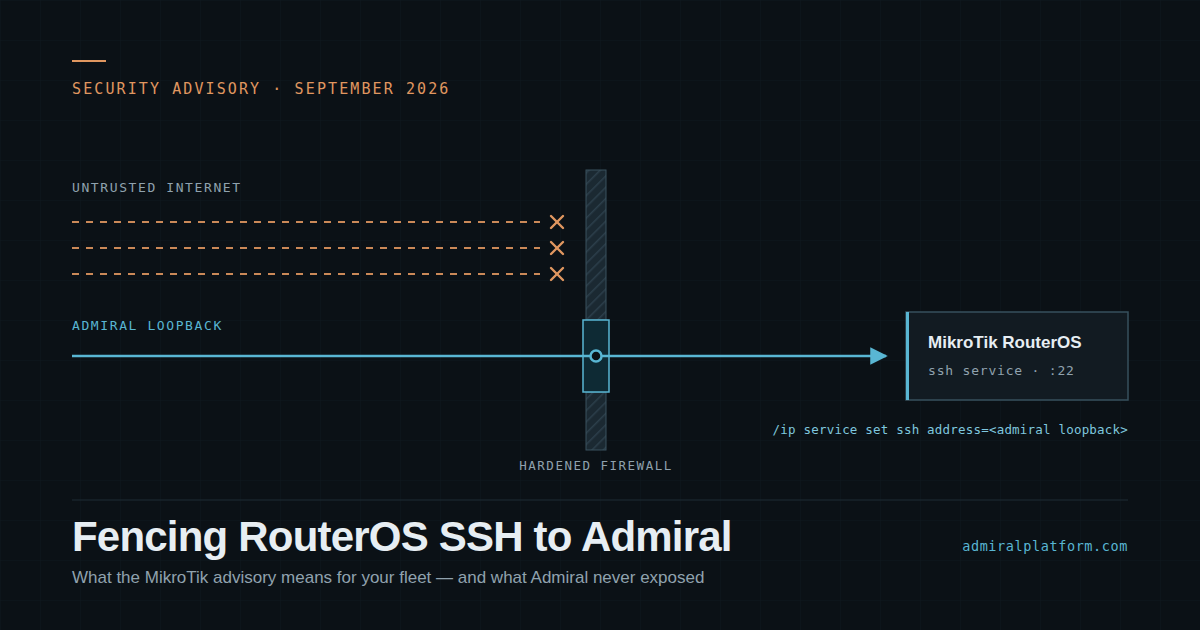
When you make a change directly on a router in WinBox, Admiral doesn't learn about…
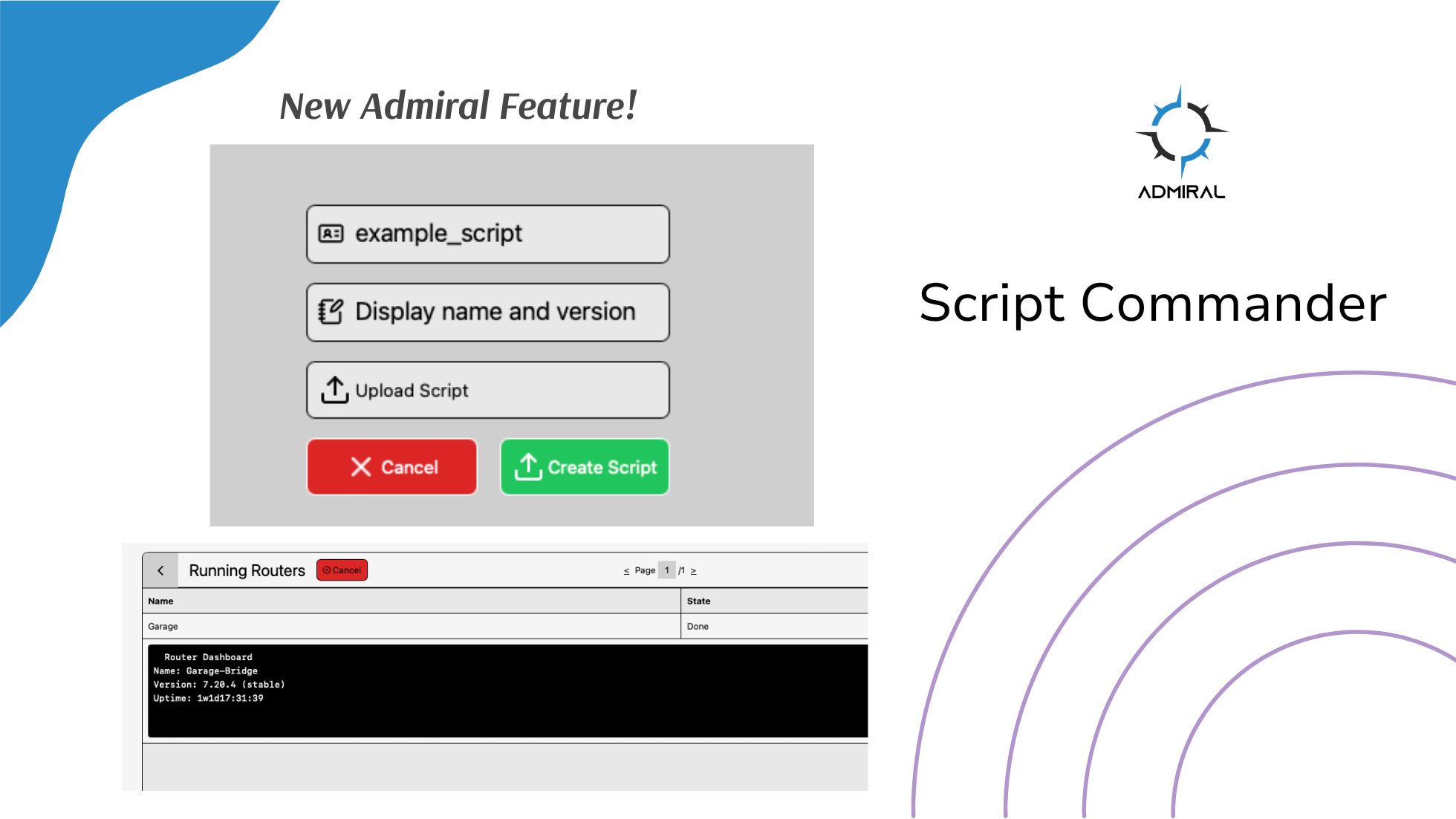
Introducing Script Commander — Automate & Scale Your MikroTik Fleet with One Click
Script Commander, is a new feature on Admiral Platform designed to give you better control over your MikroTik network — without the manual headaches.
When managing dozens, hundreds, or thousands of MikroTiks, repetitive tasks like VLAN changes, firewall updates, DHCP tweaks, or routine maintenance quickly become a chore. With Script Commander, you can now upload RouterOS script files (.rsc), save them in a central library, and run scripts on one or hundreds of routers at once — all from a unified, secure dashboard.
What Script Commander Lets You Do
- Upload .rsc files — add your existing RouterOS scripts and give each a friendly nickname for easy identification.
- Maintain a script library — store all your scripts in one place so your team can reuse, organize, or update them as needed.
- Create Script Jobs — pick a script, select target routers (single, multiple, or the entire fleet), and run now.
- Track execution & logs — after the job runs, view results for each router: success/failure, output, and timing.
Whether you need a quick status check, mass configuration change, or emergency hotfix, Script Commander handles it — with consistency and visibility.
How It Works — in 3 Easy Steps
- Upload a Script
Head to Router List → Fleet Commander → Script Commander, upload your.rsc, give it a nickname (e.g. “Add VLAN 20”, “Reboot All CAPs”), add an optional description, and save. - Create a Job
Choose your script from the library, select which routers to run on (use filters, tags, or bulk select), and click “Run Now.” Admiral opens a secure channel, pushes the script, and executes it on every selected device. - Review Results
Once execution completes, jump to Job History — you’ll see a per-router breakdown: success/failure, output or errors, timestamps, and logs. Great for auditing or troubleshooting.
Why It’s a Game-Changer
- Massive time savings — No more logging into each router individually. One script, one click, fleet-wide change.
- Reduced human error — Automated, script-driven changes minimize mis-typed commands or forgotten routers.
- Full visibility & compliance — Script history + output + logs = perfect for audits, compliance, or team transparency.
- Flexibility for every use case — From simple read-only status checks to bulk configuration changes, scheduling maintenance, or emergency fixes.
Example Use Cases
- Push global firewall or VLAN changes across all sites at once.
- Update DHCP, NTP, or DNS settings fleet-wide.
- Mass-reboot routers for scheduled maintenance or upgrades.
- Run diagnostic or audit scripts to gather stats or compliance data.
- Deploy emergency hotfix scripts when a bug or vulnerability is discovered.
Best Practices & Safety First
Script Commander is powerful — but with great power comes responsibility. Here’s how to use it safely:
- Test first on a lab router — especially for scripts that change configuration.
- Use descriptive script names and version tags — e.g. “firewall-update-v3” instead of “script1.”
- Keep scripts modular and commented — makes tracking changes easier over time.
- Avoid hard-coding interfaces or device-specific values unless absolutely necessary.
Ready to Scale Your Network — Smarter
If you manage many MikroTiks, Script Commander turns repetitive manual tasks into one-click automation. It’s ideal for ISPs, MSPs, WISPs, multi-site deployments, or any environment where consistency, speed, and safety matter.
Head over to your Admiral dashboard, upload a script, and start automating today. It’s your network — managed better.

Related Posts