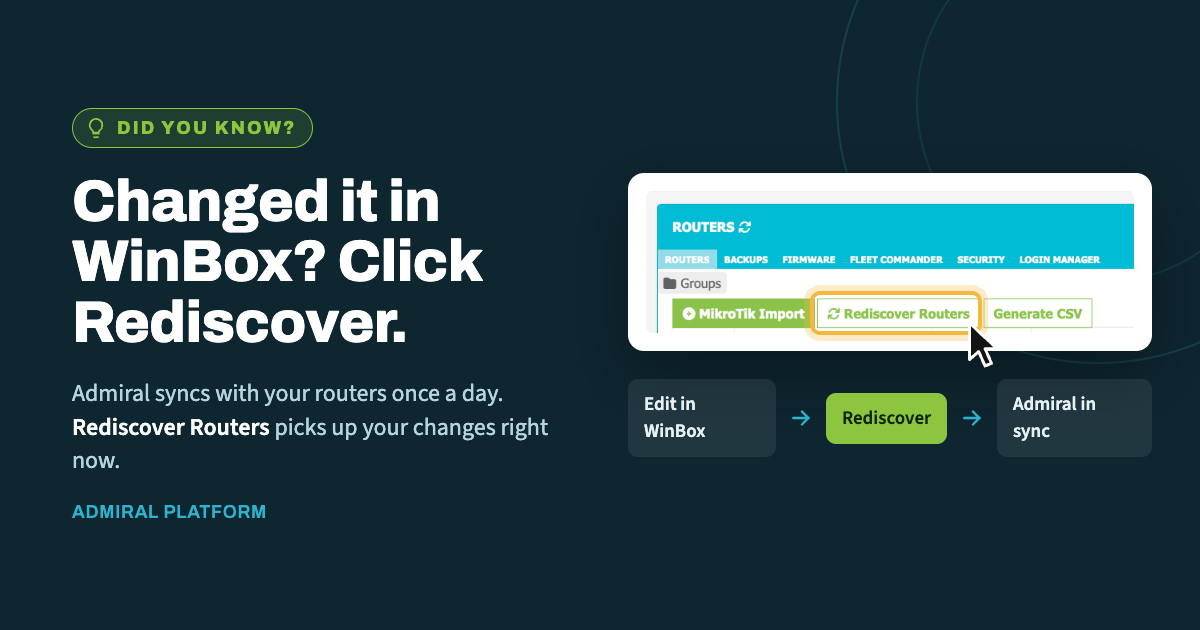
When you make a change directly on a router in WinBox, Admiral doesn't learn about…
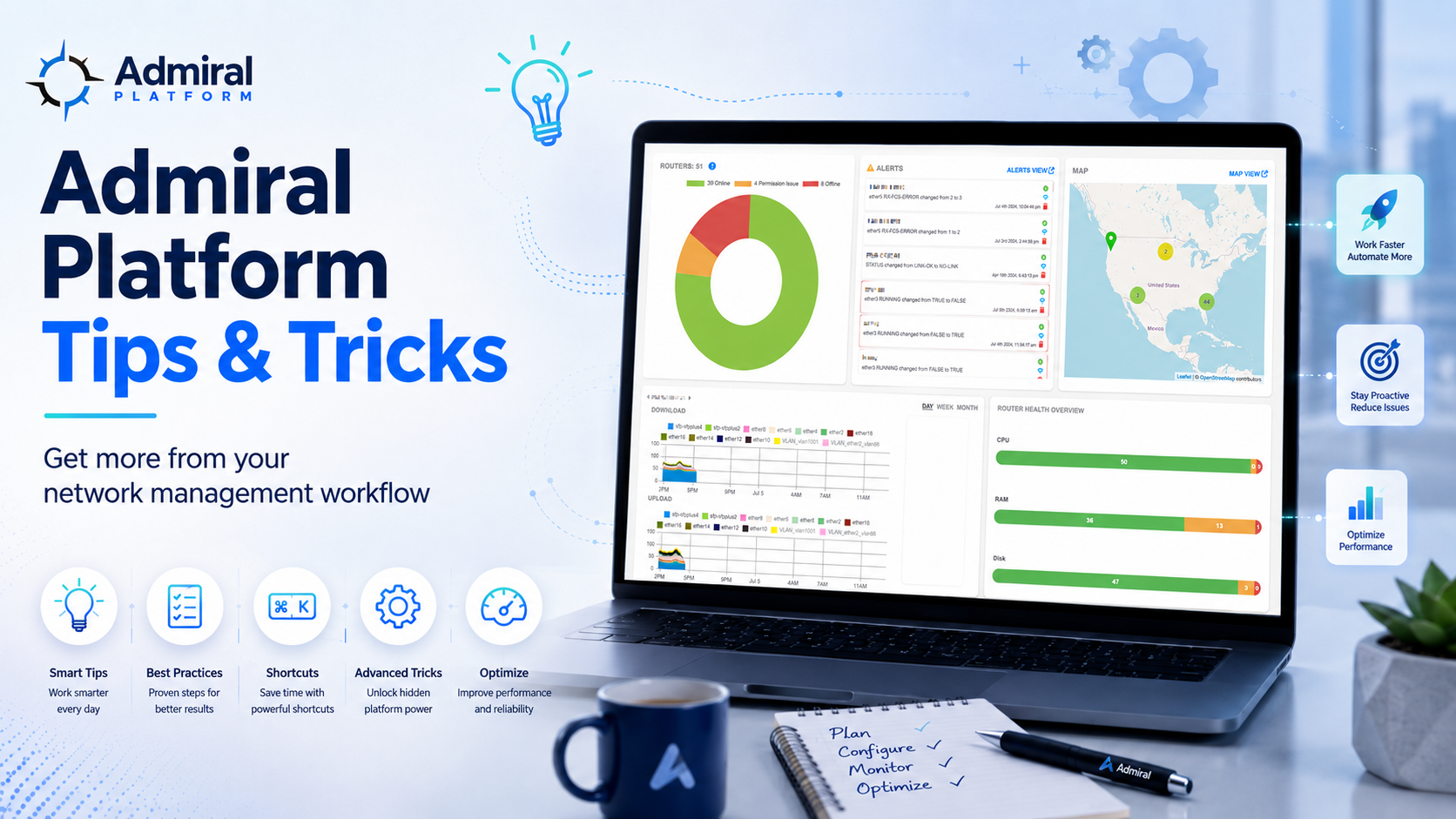
Admiral Platform Tips & Tricks 🚀
Here are some powerful features and shortcuts to help you get the most out of Admiral:
Operations Tip: Spend time setting up your Admin Settings, Tags, and Groups early – it pays huge dividends as your deployment grows!
🔍 Quick Navigation & Search
– Omni-search: Use the search bar on the Router List to find routers by name, tags, IP, MAC address, serial number, or even notes
– Direct URL Access: Jump straight to a router’s health page using its MAC address:
https://app.admiralplatform.com:8080/auth/routers/router_health?router=[MAC_ADDRESS]
🏷️ Organization Pro Tips
– Tags: Use tags to organize by location, customer type, or network role – then filter your view with one click
– Groups: Create nested folder structures for complex deployments
– Favorites: Set up to 10 favorite routers to monitor their bandwidth graphs on the main dashboard
– Hierarchy View: Build parent-child relationships to visualize your network topology
⚡ Efficiency Boosters
– Fleet Commander: Run scripts across multiple routers simultaneously – save common commands for repeated use
– Login Manager: Centralize WinBox credentials so adding/removing team members is a one-click operation
– Scheduled Firmware Updates: Set updates to run during maintenance windows
– Auto-Backups: Enable daily automatic backups (requires SSH) and never worry about losing configs
📱 Mobile & Remote Access
– “Allow Admiral to discover my IP”: Click this button when accessing from new locations, mobile devices, or CGNAT connections (Starlink, etc.)
– 10-second window: After clicking, you have 10 seconds to connect – your IP stays valid for 24 hours
🛠️ Troubleshooting Shortcuts
– Latest Available Firmware: For routers with limited disk space (HAPs), choose “Latest Available” instead of specific versions – uses RAM instead of disk
– Backup Compare Tool: Quickly spot configuration changes between any two backups
– Search All Backups: Find specific commands or settings across your entire fleet’s backup history
– Router Timeline: View a chronological history of all events for a specific router
🎯 Power User Features
– Web SSH: Access CLI directly from your browser – no WinBox needed for quick commands
– Neighbor Discovery: Automatically see connected devices in a visual interface
– WiFi Scanning: Check channel congestion and airtime availability remotely
– Speed Test Management: Set Management IPs to test between specific routers
📊 Dashboard Optimization
– NOC View: Dashboard, Alerts, and Map auto-refresh every minute – perfect for wall monitors
– Status Ring: Click colored sections to filter router list by online/offline status
– Bandwidth Graphs: Hover over graphs for precise data points
🔐 Security Best Practices
– Use Login Manager to control team access centrally
– Review Allowed IPs regularly in Security settings
– Set user permissions by group to limit access to sensitive features
💡 Lesser-Known Features
– VPN Health Check: Automatically monitors and repairs VPN connections
– Config Change Emails: Get notified daily when router configs are modified
– Multi-Command Jobs: Run complex scripts with directory changes in Fleet Commander

Related Posts