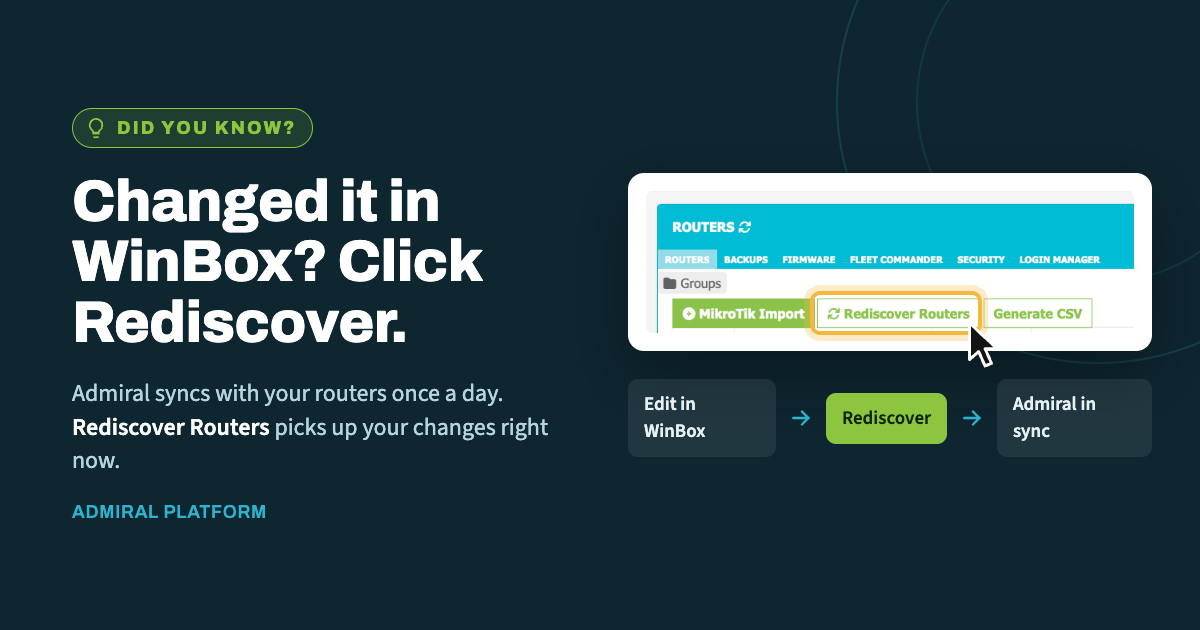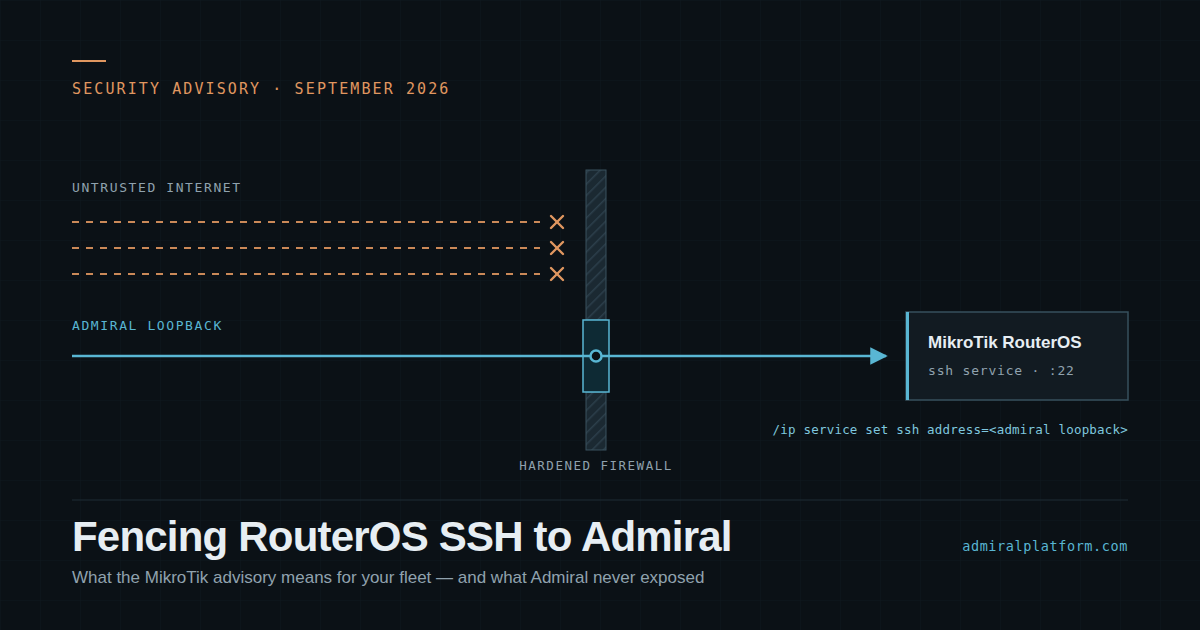
When you make a change directly on a router in WinBox, Admiral doesn't learn about…
Blank Backups in Admiral Platform?
Blank Backups in Admiral Platform? Your MikroTik SSH Host Key May Be Corrupt
If your MikroTik backups are showing up blank in Admiral Platform, one possible cause is a corrupt SSH host key on the MikroTik itself.
We recently helped troubleshoot a router where backups were failing, and while reviewing the MikroTik logs, we found this message:
log print where topics~"ssh"

ssh,error Corrupt host's key, regenerating it! Reboot required!
That message is the key clue. Admiral relies on SSH for certain management functions, including backup collection and WebSSH access. If the MikroTik’s SSH host key is corrupt, SSH-based features may fail or behave unexpectedly, which can result in blank backups inside Admiral.
What Is the SSH Host Key?
Each MikroTik generates its own SSH host key, usually at first boot. This key is unique to the router and is used to identify the device when SSH connections are made.
In most cases, you never need to think about it. But if the key becomes corrupt, SSH may stop working properly until the key is regenerated.
Fortunately, MikroTik gives us a simple way to regenerate the host key.
Step 1: Regenerate the MikroTik SSH Host Key
Start with the simplest fix:
/ip ssh regenerate-host-key
After running this command, go back into Admiral Platform and try opening the WebSSH tab for that router.
If WebSSH loads successfully, the router should be good to go. You can then retry the backup process or wait for the next scheduled backup.
Step 2: Reboot the MikroTik
If regenerating the host key does not immediately resolve the issue, reboot the router:
/system reboot
After the router comes back online, test the WebSSH tab again in Admiral.
If WebSSH works, SSH is functioning properly again and backups should begin working as expected.
Step 3: Try Changing the SSH Host Key Size
If the issue still is not resolved, check the current SSH settings:
/ip ssh print
Then try changing the host key size.
For example, set it to 2048:
/ip ssh set host-key-size=2048
If the router is already set to 2048, try changing it to 1024 instead:
/ip ssh set host-key-size=1024
After changing the key size, regenerate the SSH host key again:
/ip ssh regenerate-host-key
Then test Admiral WebSSH again.
Step 4: Reboot One More Time
If WebSSH still does not work after changing the key size and regenerating the key, reboot the MikroTik one more time:
/system reboot
Once the router is back online, return to Admiral and test the WebSSH tab.
Quick Troubleshooting Summary
If Admiral backups are blank and you see this MikroTik log entry:
ssh,error Corrupt host's key, regenerating it! Reboot required!
Try the following:
/ip ssh regenerate-host-key
Then test Admiral WebSSH.
If needed, reboot:
/system reboot
If it still does not work, change the SSH key size:
/ip ssh print
/ip ssh set host-key-size=2048
Or, if it is already 2048:
/ip ssh set host-key-size=1024
Then regenerate the host key again:
/ip ssh regenerate-host-key
And reboot once more if necessary:
/system reboot
Final Thoughts
Blank backups in Admiral Platform are not always caused by Admiral itself. Sometimes the issue is on the MikroTik side, especially when SSH is not functioning correctly.
If you see the Corrupt host's key error in the MikroTik logs, regenerating the SSH host key is a good first step. Once SSH is healthy again, Admiral WebSSH and backup collection should return to normal.
As always, if you are unsure or the issue continues after these steps, reach out to Admiral Platform Support and we can help you troubleshoot further.

Related Posts