Recently we had the opportunity to investigate some polling and telemetry issues on some poorly…
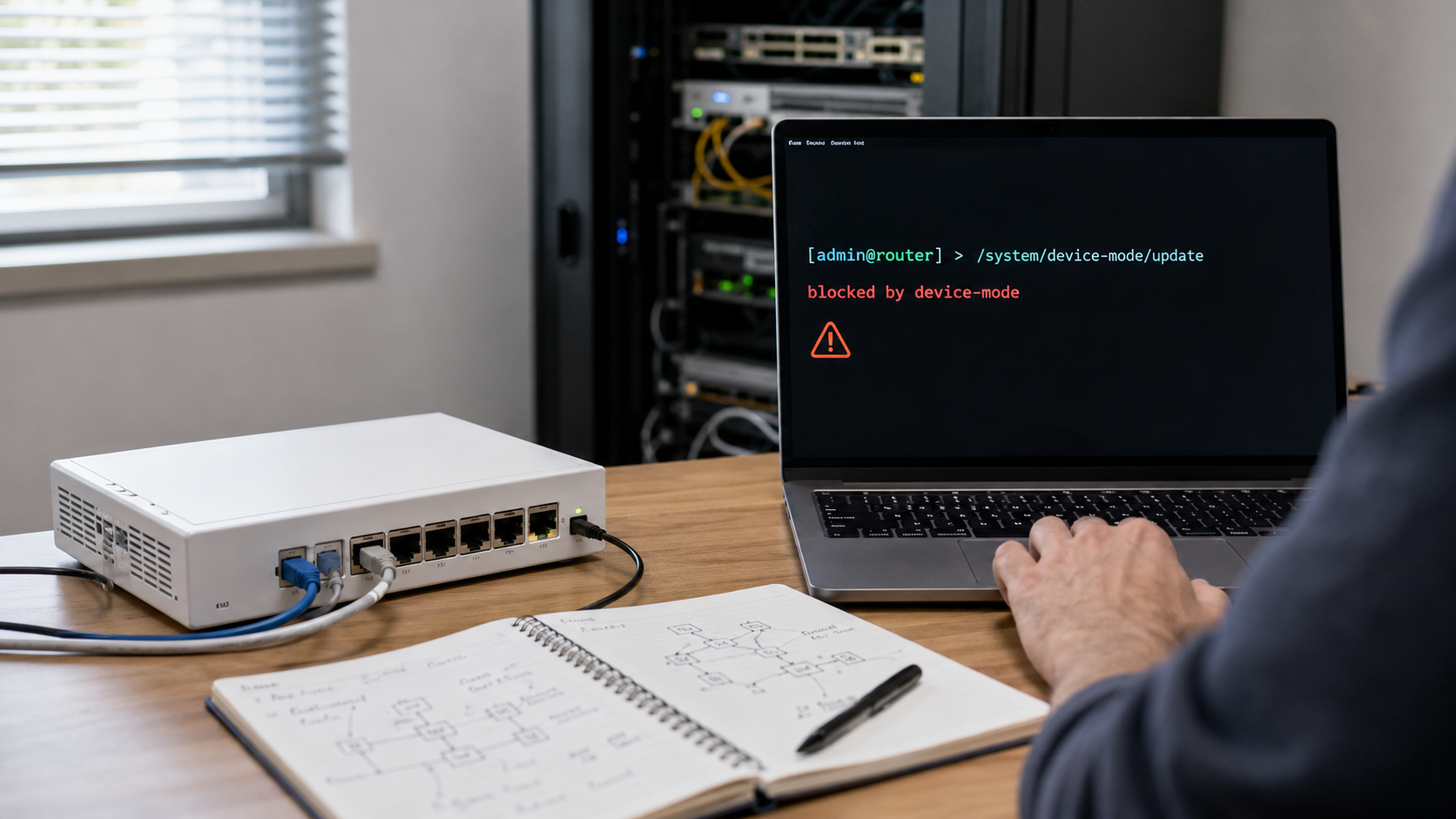
Blocked by Device Mode!
Over the last year, I’ve noticed something happening more and more often while working on MikroTiks:
I go to use a perfectly normal troubleshooting or operations tool — RoMON, Bandwidth Test, Ping Speed, Traffic Generator, maybe even something tied to Hotspot, Scheduler, or Fetch — and RouterOS stops me with a message that basically says:
Not allowed by device-mode.
At first, this feels like the router is fighting you. But what’s really happening is MikroTik’s newer RouterOS security mechanism, Device Mode, is doing exactly what it was designed to do: limiting access to higher-risk features unless they’ve been explicitly allowed.
And yes, that can be a little painful when you’re standing in the middle of a production outage and suddenly realize the tool you wanted to use is disabled.
What is MikroTik Device Mode?
Device Mode is a RouterOS security feature that limits which features and configuration areas are available on a MikroTik. MikroTik describes it as a way to set specific limitations on a device or restrict access to certain configuration options. The goal is to protect routers and networks from attackers who gain unauthorized access and then try to use the router as a launchpad for other attacks. (help.mikrotik.com)
Starting with RouterOS 7.17, MikroTik began factory-installing Device Mode settings on devices. CCR and 1100-series devices are generally set to advanced mode, home routers are set to home mode, and other devices are generally set to basic mode. Devices running versions before RouterOS 7.17 use the older advanced/enterprise behavior.
There are currently four device modes:
- home
- basic
- advanced
- rose
Each mode allows or blocks different features. The important detail is this: even advanced mode does not enable everything. Features like containers, traffic generator, partitions, install-any-version, and routerboard settings are still disabled unless an administrator explicitly enables them.
Why did MikroTik add Device Mode?
The short answer: security.
Routers are high-value targets. If an attacker compromises a router, they may try to enable services, run scripts, downgrade RouterOS to a vulnerable version, use tunneling features, sniff traffic, proxy traffic, or turn the router into infrastructure for more attacks.
Device Mode adds another layer of defense. It can block or limit features such as Scheduler, SOCKS proxy, Fetch, Bandwidth Test, Sniffer, RoMON, Hotspot, ZeroTier, Containers, Traffic Generator, and more depending on the mode and feature settings.
It also includes an “allowed versions” concept, which helps prevent an attacker from downgrading RouterOS step-by-step to an older vulnerable version. MikroTik notes that this operates as a separate protection layer, independent of the currently installed RouterOS version.
RouterOS can also enter a flagged state if suspicious configuration or signs of unauthorized access are detected. In that state, RouterOS restricts certain actions and requires the administrator to audit the router before clearing the flag. MikroTik specifically says that if a system is flagged, you should assume compromise, audit the configuration, change passwords, and upgrade RouterOS.
So, while Device Mode can be annoying in the moment, the reason it exists is very real.
What does this mean in the real world?
It means that a MikroTik may have the feature you want, but Device Mode may still block you from using it.
You might be troubleshooting and try to run:
/tool bandwidth-test
/tool speed-test
/tool romon
/tool sniffer
/tool traffic-generator
/tool flood-ping
/tool ping-speed
And instead of getting useful diagnostic data, you get blocked.
This is especially frustrating when you’re working on a production node. Maybe you’re remote. Maybe you’re troubleshooting packet loss. Maybe you need RoMON to reach a downstream router. Maybe you want to run a quick bandwidth test between routers.
Then RouterOS reminds you that enabling the feature requires confirmation through physical access: press a button on the device, or perform a true cold reboot by removing power. MikroTik says that after a Device Mode update, the change must be confirmed by pressing the reset or mode button, or by unplugging power; once confirmed, the device reboots. Talk about frustrating!
So yes, sometimes it feels like you need to perform a hard reboot while dancing in the rain around a fire on the third full moon.
Just kidding.
Mostly.
But it really can be a pain when you’re mid-troubleshooting and discover that the feature you need is blocked until you take a production router down.
How to check your current Device Mode
Before you get surprised in the field, check it:
/system/device-mode/printYou’ll see the current mode and which features are enabled or disabled.
For example, you may see something like:
mode: advanced
bandwidth-test: yes
traffic-gen: no
sniffer: yes
romon: yes
container: no
routerboard: no
That tells you what’s currently allowed and what still needs to be explicitly enabled.
How to enable a feature blocked by Device Mode
The command format is:
/system/device-mode/update feature=yesFor example, to enable Bandwidth Test:
/system/device-mode/update bandwidth-test=yesTo enable RoMON:
/system/device-mode/update romon=yesTo enable Ping Speed, Flood Ping, and Traffic Generator tools, MikroTik groups these under the traffic-gen feature:
/system/device-mode/update traffic-gen=yesTo enable Containers:
/system/device-mode/update container=yesTo enable RouterBOARD settings, including certain RouterOS/SwOS transition controls:
/system/device-mode/update routerboard=yesAfter running the update command, RouterOS will prompt you to confirm the change. You generally have five minutes by default to press the reset/mode button or remove power. If you do not confirm in time, the change is canceled.
A typical message looks like this:
update: please activate by turning power off or pressing reset or mode button
        in 5m00s
Once confirmed, the router will reboot.
Important tip: don’t blindly change modes
You can change the whole mode:
/system/device-mode/update mode=advancedBut be careful. MikroTik notes that if you specify a new mode, it replaces the entire Device Mode configuration, and previous per-feature customizations may be lost unless you include them in the same command.
In other words, this:
/system/device-mode/update mode=advancedis not the same as this:
/system/device-mode/update romon=yes bandwidth-test=yes traffic-gen=yesIf all you need is one feature, enable that feature directly.
Commissioning checklist: save yourself future pain
This is the part I’m personally adding to my own MikroTik deployment process.
Before a router goes into the field, decide which tools your team expects to use and enable them during staging.
For many operators, that might include:
/system/device-mode/update mode=advanced romon=yes bandwidth-test=yes sniffer=yes fetch=yes scheduler=yesDepending on your environment, you may also want:
/system/device-mode/update traffic-gen=yesOr, if you use containers:
/system/device-mode/update container=yesJust remember: don’t enable things casually. Device Mode exists for a reason. Only enable the features you actually need, and make sure the router is otherwise secured.
Better provisioning options
For larger deployments, this is exactly the sort of thing that should be handled during provisioning instead of discovered during an outage.
Starting with RouterOS and Netinstall 7.22, MikroTik supports a Mode script that can configure Device Mode during deployment. The Mode script runs once on first boot before the normal configuration script, and if it changes Device Mode, the device reboots immediately after the script runs. (help.mikrotik.com)
FlashFig also supports Mode scripts starting with RouterOS/FlashFig 7.22, making it possible to include Device Mode preparation as part of a factory-style deployment workflow. (help.mikrotik.com)
That means if you’re deploying MikroTiks at scale, your staging process should probably include Device Mode decisions right next to firmware, users, firewall baseline, backups, monitoring, and remote access.
Final thought
Device Mode is one of those changes that can feel frustrating at first because it gets in the way of old habits. But the security logic behind it is solid: MikroTik is reducing the blast radius of compromised routers and making dangerous or abuse-prone features require intentional administrator action.
For operators, the lesson is simple:
Don’t wait until an outage to discover which tools are blocked.
Check Device Mode during commissioning. Enable the features your team actually needs. Document the standard. Build it into your provisioning process.
One more time, Device-Mode official documentation.
Now you know — and knowing is half the battle.
Keep routing the world with MikroTik, and keep managing your MikroTiks with Admiral.

Related Posts