
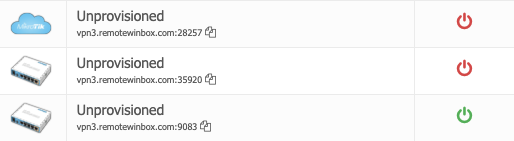
Use this feature to copy and paste a generic config to a router. When the router comes online it will automatically appear on your dashboard as an “unprovisioned” router.
Adding routers via EZ Config #
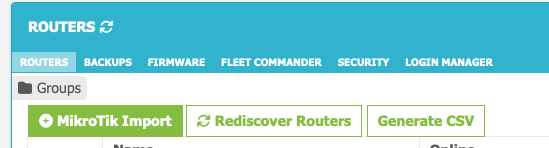
- Click the MikroTik Import button on the Router Listing page.
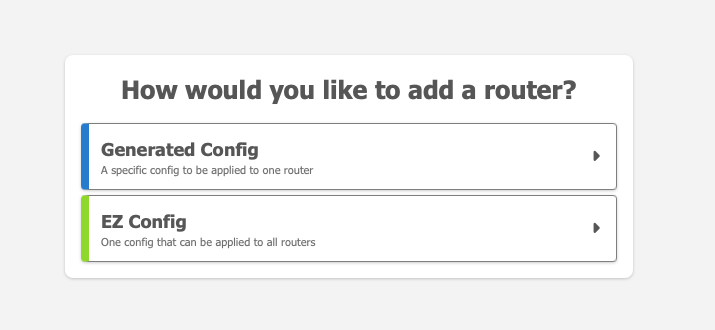
- Next select the EZ Config button.
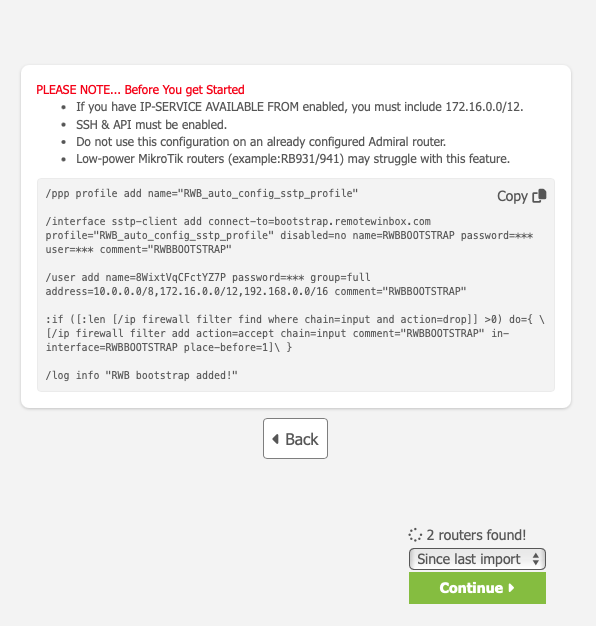
- Copy and Past the config.
Once the router has appeared on the dashboard, users can adjust its name, location, tags, and modify other settings. Within minutes, the discovery process will show the routers’ IP, MAC, system identity, and serial number to help identify the right router on the edit router page and search bar.
Once discovered, the router will automatically begin displaying Router Health data, upload and download bandwidth, CPU, RAM, and Disk usage, and show the bandwidth of any connected LAN devices. If enabled, Admiral Platform will immediately begin taking nightly backups, as well. Users can update firmware, run bulk configuration changes, and adjust logins and user access.
EZ Config allows users the fastest way to start managing their routers with Admiral Platform.


